 Owlio
Spam tokens and NFTs in your wallet: what to do
A practical guide to checking unexpected assets and cleaning your portfolio display, with the limits of token hiding and NFT filters explained.
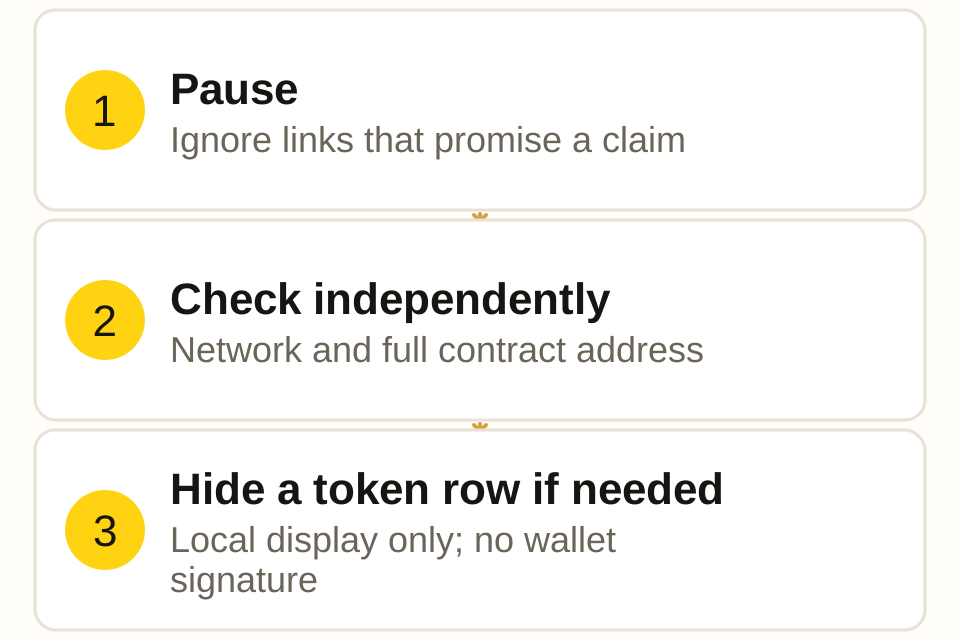
If spam tokens or an unexpected NFT appear in your wallet, do not follow links in the asset’s name, description or image, and do not sign anything to claim or remove it. Check the asset through a wallet, explorer and project source you already trust. You can leave it untouched while deciding what it is. Hiding a portfolio row is a display change; it does not burn, transfer or remove the asset from the blockchain.
This guide explains the checks and then shows how to clean token rows in Owlio. Its product steps were checked against the 1.1.0 release code and the version listed in the Chrome Web Store on 4 October 2026.
Why did a token or NFT arrive without your permission?
A public address can receive assets from other people. A sender does not need your recovery phrase or an approval from you to send a token to that address. Some distributions are legitimate; others scatter unwanted tokens or NFTs across addresses to attract attention. Receiving one by itself does not establish that your wallet has been compromised.
The lure may be a familiar symbol, a large apparent value or a message promising a reward. A link can lead to a site that asks for a recovery phrase, a transaction approval or a signature. MetaMask’s NFT airdrop warning describes this pattern. A request that looks like a harmless sign-in can also authorize an action: signature phishing does not always start with an on-chain transaction.
Do not use a site advertised by the asset to “unlock,” sell or clean it up. MetaMask’s token safety guidance recommends leaving scam tokens alone. You do not have to interact with one to make your portfolio easier to read.
Check the identity without using the asset’s links
For a token, the useful identity is the network and the full contract address. Its name, ticker and logo can be copied. The same symbol on a different contract is a different token; the same contract address on another network still needs a separate check.
- Open the wallet or chain explorer you normally use through a saved bookmark or a known address. Inspect the holding there, rather than opening a website named inside the token.
- Record the network and full token contract address. MetaMask explains where to find a contract address.
- Compare the whole address with the project’s official documentation for that network, reached independently. For a bridged asset, check the specific representation and destination network. Do not compare only the first and last characters.
- If you cannot establish the identity, leave the asset untouched. A tracker label or an explorer entry is information to investigate, not proof that you should trade it.
For an EVM NFT, record the network, collection contract and token ID. Other chains expose different identifiers; check those in their trusted explorer. A collection name alone is not enough. Treat text inside the image or description as information supplied by its creator. It is not an instruction from your wallet provider.
What Owlio’s token labels tell you
Owlio reads public addresses. You can install it from the Chrome Web Store and add an address without connecting a signing wallet or entering a recovery phrase. The multiple-wallet guide explains the combined view.
Its token categories describe how a row was identified and priced:
| Row or filter | What it tells you | What to check next |
|---|---|---|
| Asset recognized by Owlio’s list | The row matches a known asset in that list | Match the network and contract before using it elsewhere |
| Unlisted | A market source supplied usable token data and a price; Owlio’s list does not know it | Check the identity and treat the value with care |
| Copied symbols | The row’s symbol matches a symbol in Owlio’s known-asset list | Compare the full contract, not the ticker |
| No metadata | The token is missing a usable symbol or decimals value | Check the wallet or explorer; do not infer that it is worthless |
Unverified is not a verdict that a token is a scam. A real asset may be unknown to the tracker. Nor does a price, an “unlisted” label or recognition in an asset list prove safety. Owlio is a portfolio display, not a security audit of contracts.
Hide a token row and restore it later
In Owlio 1.1.0, the steps differ depending on where the token appears.
For an unverified token:
- On the Tokens tab in Portfolio, use Review them in the unverified-assets summary to open Unverified.
- Use All, Copied symbols or No metadata to find the row. These are filters, not a complete scam classification.
- Press Hide beside that row. It leaves the visible unverified list.
- To undo the choice, open Unverified, select Hidden, and press Show on the row. The route to hidden rows remains available even if you hid every unverified token.
The Unverified screen shows a shortened contract address. Use the wallet or explorer for the full identity check described above; do not assume the shortened text is enough.
For an unlisted token priced by a source: expand its row on the Tokens tab and use the Hide control with the crossed-out eye icon. You can restore it through Unverified → Hidden → Show. This control is for source-priced unlisted rows; assets recognized by Owlio’s list do not have a Hide control.
The preference is saved in this browser profile and applies to that stored token row across the wallets you track there. The same contract on another network is a separate row. Different or missing decimals data in the original stored records can also result in separate rows. Source data can later fill in the displayed decimals without merging those stored rows. The Hidden filter lists matching positions in the currently loaded portfolio. If a row is no longer loaded, it may not appear there even though its hiding preference persists. If you are moving browsers, the backup guide covers the local data file.
After hiding, check the list and then open Hidden to confirm you can find the row again. No transaction, wallet signature or network fee is part of these Owlio steps. A wallet signing prompt during this cleanup is outside the described flow: stop and check which site or extension is asking.
Why the portfolio total may change
Unverified tokens already sit outside Owlio’s value total. Hiding one tidies the list and count; it does not subtract a previously counted value.
An unlisted token priced by a source can be included in the total before you hide it. Hiding that row removes its value from the displayed total. Your on-chain amount has not changed. This distinction helps explain why cleaning an apparent airdrop can lower the number at the top of the panel without spending anything.
A quoted value is also not a promise that you can sell the asset for that amount. If the rest of the total still looks wrong, use the balance mismatch checklist to compare amounts, prices and data-source status separately.
NFTs use a different path
Owlio’s NFT coverage and filtering depend on the data source. For TON, it shows records that TONAPI marks as whitelisted. For networks read through Blockscout, it builds collection cards from the returned names and counts; it does not reject a card merely because the name contains a web address. Records without usable names are counted separately, and the tab reports skipped or unreadable records. These rules can omit legitimate items or show unwanted ones. A card that appears is not certified safe, and an absent card does not prove the NFT is absent from the wallet. NFTs are not valued in Owlio’s portfolio total.
Owlio 1.1.0 has no individual Hide or Show control for NFT cards. Do not look for the token workflow on the NFT tab. If you want a collection out of your signing wallet’s display, follow that wallet’s own hiding instructions, taking care to distinguish a local hide action from a burn or transfer transaction. This guide does not ask you to burn an unsolicited NFT.
Privacy Mode and the limits of cleanup
NFT previews can load images from third-party hosts. If you want to avoid those preview requests, enable Privacy Mode before opening the NFT tab, using the Hide amounts control. In Owlio, it masks financial numbers and prevents NFT preview images from loading while enabled. It cannot undo an image request already made.
The mode does not make address tracking anonymous. Owlio still reads balances and NFT inventory through public services, which can see the requested address and your IP. Hiding a token is a local display preference; it does not make the address private or revoke a permission you signed elsewhere. Read the privacy policy for the data flow.
If you already followed a suspicious link or signed a request, a clean tracker display is not evidence that the problem is resolved. Stop interacting with that site and consult your signing wallet’s official security guidance through a known route. Approval management and recovery belong to that wallet’s security process; Owlio cannot perform them.
For routine cleanup, check that the unwanted token row is hidden and can be restored in Hidden. If the total changed, use the rules above to understand why. You can leave the underlying asset alone.
Frequently asked questions
Does an unexpected token mean my wallet has been hacked?
Receiving an unsolicited asset alone does not establish that someone controls your wallet. Anyone who knows a public address can send assets to it. The links and signing requests attached to a supposed claim are a separate risk.
Does Hide remove a token from the blockchain?
No. In Owlio it is a local display preference. The token remains at the same address; Hide sends no transaction and revokes no approval.
Are all unverified tokens scams?
No. A legitimate token can be unknown to the tracker or lack usable metadata. Check the network and full contract address independently; neither a familiar symbol nor a displayed price proves safety.
Can I manually hide an NFT in Owlio 1.1.0?
No. This version filters NFT records using source flags and metadata rules but does not offer an individual Hide or Show control for NFT cards. Privacy Mode prevents NFT preview images from loading while it is enabled.